 Testing One Off Payments
This page guides you through testing your integration - it guides you through creating payments and testing various behaviors. It does not cover all possible payment flows. For simulating payment flows and testing callbacks for each payment status, refer to Testing Payment Flows.
Testing requires you to make API calls in the Sandbox environment:
https://api-platform-sandbox.flywire.com/
1. Choose the recipient for the test payment.
 What is a recipient?
A recipient - also called a portal - contains the information that is needed for receiving funds, like the receiving bank account, the currency in which Flywire takes payments from your payers, or specific fields your system requires to process a payment. Flywire assigns each recipient a unique identifier, called recipient ID or portal code.
You as a client can have multiple recipients, for example for different bank accounts or currencies.
Help for finding recipients
The list of recipients contains all the recipients that are available to you as a client. You can display this list in your UI, for example as a drop down, so that the person creating the payment in your system can choose one of the recipients.
Parameters for the Request Body
No request body needed.
Optional Query Parameters for Pagination
This endpoint supports pagination. If you are not providing any pagination parameters, the response is returned with default pagination settings.
Pagination parameters are added as query parameters with the request in the format {endpoint_path}?page=2&per_page=10
Default setting
The default setting is:
page=1 (start on page 1)
per_page=10 (display 10 entries per page)
page integerquery parameter
Enables you to access a specific page of the results.
Possible values: Any positive number except zero.
per_page integer query parameter
Enables you to define how many results will be included per page.
Possible values: min 1, max 100
curl https://base-url-placeholder/recipients?page=1&per_page=100
  -X GET
  -H "Content-Type: application/json"
  -H "X-Authentication-Key: {api_key}"
2. Create a Checkout Session.
Help for creating a Checkout Session for One Off Payments
Parameters for the Request Body
type string
The type of the Checkout Session. Must be one_off for One Off Payments.
charge_intent object
mode string
Must be one_off (since this is a One Off Payment).
payor object
These fields enable you to pass payer data to pre-fill the fields of the form.
Help for pre-filling payer fields
For a description of all fields and their valid values form see:
-
Payment Element if you are using Flywire Elements
-
Checkout Experience if you are using Checkout
-
Pre-filling fields is optional. If no values are provided, the fields will be empty for the payer to complete.
-
Pre-filling fields alone does not affect if fields are editable. Pre-filled fields remain editable unless you explicitly made them read-only or hide them via the settings.
Best practice
Before pre-filling payer fields, consider who the actual payer is.
The form asks for the cardholder or bank account owner’s information. There can be cases when the personal data you have on stored (for example, in your ERP system) is different from the data for the actual payer. Always consider which information you store in your system and how useful it is for pre-filling fields.
Example: Students log into your school portal to pay tuition. In most cases, their parents pay the tuition with their credit card. If you automatically pre-fill the payer fields with the student's profile info, every student has to correct the info and change it to their parent's information.
This distinction is crucial if you plan to hide fields or make them read-only. If you use the wrong data for pre-filling fields and make it impossible for the payer to change it, you could prevent them from completing the payment.
You can to set these fields to hidden or read-only for the payer through settings in the options object.
More info about setting fields to hidden or read-only
When using Elements, you can control which payer fields can be edited by your payer - either by setting them to read-only or be completely hiding the field from the payer.
|
You can configure read-only at three levels: |
|
|
What happens if a field has conflicting settings at multiple levels? Smart Rendering > Individual Field > Global Form This means Smart Rendering settings win over individual field settings, and individual field settings win over global form settings. |
|
You can configure the visibility of fields at two levels: |
|
|
What happens if a field has conflicting settings at multiple levels? Smart Rendering > Individual Field This means Smart Rendering settings win over individual field settings. |
What happens if something goes wrong? - Automatic Field Unlocking
All payer fields are required to send the form. If your settings would prevent the payer from submitting the form - for example you're hiding the email field but provided an invalid address- the field automatically becomes visible and editable.
Automatic field unlocking happens for a hidden or read-only field when:
-
you didn't submit a value through the Checkout Session (results in an empty field for the payer to fill out)
-
you submitted an invalid value through the Checkout Session (results in a field showing the invalid value, highlighted with an error message so that the payer can correct it)
first_name string
The payer's first name.
The field only accepts Latin characters from A-Z and 0-9. Max. 256 characters.
last_name string
The last name (family name) of the payer.
The field only accepts Latin characters from A-Z and 0-9. Max. 256 characters.
address string
The payer's address.
The field only accepts Latin characters from A-Z and 0-9 and the following special characters:
-
, (comma)
-
/ (slash)
-
- (hyphen)
The address can’t be a PO box. If the words "PO" or “box” is detected in this field, it will show an error message.
city string
The payer's city.
The field only accepts Latin characters from A-Z and 0-9. Max. 256 characters.
The city needs to contain at least a vowel and have more than one character. For example, NY won’t be accepted and must be corrected to New York.
country string
The country of the payer.
Format:
Two-letter format (ISO 3166-1 alpha-2), for example US for USA or GB for the United Kingdom.
state string
The state field is only displayed when the country is “United States” or “China”. When it is displayed, it is required for sending the form.
The state where the payer resides in.
Format:
Only the second part of the ISO 3166-2 code, for example for US-NY the value is NY.
phone string
The phone number of the payer (including the country code).
Validation rules when you're pre-filling the field via the API:
To fill out the country code field of the phone number, you need to put 00 in front of it. For example, "0044123456" will be turned into "44" in the country code field and "123456" in the phone number field. If you don't use 00, the country code field will be left empty and only the phone number field will be populated.
Validation rules in the Elements form:
The country code can be picked from a dropdown with fixed values. The phone number field only accepts digits. Max. 15 digits.
email string
The payer's email address.
The field accepts Latin characters from A-Z and 0-9 and the following special characters:
-
+ (plus)
-
_ (underscore)
Max. 256 characters.
zip string
The payer's zip code.
If the country is “United States” the field only accepts exactly 5 digits, for any other country it accepts a maximum of 10 digits or characters.
options object
Contains settings for the UI form.
form object
locale string
The language you want to translate the form to. The localization affects the labels of the form fields and the action button.
The default is English (“en”).
List of possible language values
| Language | Value for locale |
|---|---|
| English | en |
| Spanish | es-ES |
| Chinese | zh-CN |
| Korean | ko |
| Portuguese | pt-PT |
| Japanese | ja |
| French | fr-FR |
| Bahasa Indonesia | id |
| Arabic | ar |
| Vietnamese | vi |
| Italian | it-IT |
| German | de-DE |
show_payor_information boolean
The show_payor_information parameter gives you the option to skip the payer information page of the form. This shortens the time your payer has to interact with the form if you already provided all the necessary information. If you skip the page, the page for selecting the payment method is shown immediately.
If you don't provide the parameter, the payer information page is shown by default.
Note:
-
If you want to skip the page, all mandatory payer information fields must be pre-filled by you.
-
If field values are missing or are invalid, the payer information page will be displayed so that the payer can add or correct the information.
Possible values:
-
true default, payer information page is displayed
-
false payer information page is not displayed, page for selecting the payment method is shown immediately
recipient object
Contains the fields of the recipient.
fields array
It depends on the recipient which fields are optional or required. If a field is required, you must provide it here. Optional fields can be left out.
How to find out which fields are required for a recipient
You have two options:
Checking via the API
You can check which fields are required for a recipient (portal) with this request (replace {recipientId} with the recipient ID):
Required fields have the required parameter set to true. For more info see Getting Details about a Recipient.
Checking online
You can check which fields are required by checking your portal configuration.
id string
Identifier of the field.
value string
The value for this field.
items array
What is an item?
An item is something that your payer can pay for (for example: tuition fees, housing, etc.). When you create a payment, you display the items to your payer and they can choose for which items they want to pay. How many items there are depends on the recipient's configuration.
Can I use multiple items?
You can only use one item in this request. The id of the item must be called default.
id string
Identifier of the item.
You can only use one item in this request. The id of the item must be called default.
amount integer
The amount for this item in the billing currency,
What is the billing currency?
The billing currency is the currency in which the recipient of the payment is billing their payer. The billing currency depends on the
The amount is specified in the smallest unit of the currency, called subunits. For example, in USD, the subunit is cents, and 100 cents equal 1 USD. So, an amount of 12025 (cents) is equivalent to 120.25 USD.
Note that the subunit-to-unit ratio varies by currency, it is not always 100. See Currencies for the subunits of each currency.
notifications_url string (url)
The notifications URL enables you to receive callbacks about the payment status (see Payment Status Notifications).
The notifications URL is the dynamic URL for receiving callbacks.
Dynamic vs. static URL
There are two different URLs for receiving callbacks:
Static URL
For API integrations:
When you set up your application that accesses the Flywire API, you had the option to define a notifications URL. This is the static notifications URL. Callbacks will be sent to this URL for all payments you created via the Flywire API.
The recipient of a payment may also have a static notifications URL defined which might be different from your static notifications URL as a client. In that case, callbacks will also be sent to the recipient's notifications URL.For other integrations:
When you set up your portal together with Flywire, you had the option to define a callback URL for that portal. Callbacks will be sent to this URL for all payments for this portal.
If you don't use a static callback URL yet and want to start using it, please contact the Solutions team.
Dynamic URL
The URL you can set in a parameter when you are creating a payment is the dynamic notifications URL. Since this URL can be different for every payment you create, it is called dynamic.
How defining static and dynamic URLs affect callbacks
 = not set = not set |
 = set = set |
| Static URL |
Dynamic URL |
Result |
|
|
|
You won't receive notifications. |
|
|
|
You'll receive notifications to your static URL. |
|
|
|
For API integrations: The dynamic URL will override the static URL and you'll receive notifications only to the dynamic URL. For other integrations: You'll receive callbacks to both URLs. This is called "dual callback URL". A dual callback URL means you defined a static URL in your portal and you are sending callbacks to a different callback URL via the parameter for the payment. In this case, callbacks will be sent to both URLs. This
approach can be useful if you want to update two separate systems.
|
|
|
|
You'll receive notifications to your dynamic URL |
external_reference string
The external reference.
The external reference helps you to identify a payment, since the Flywire-generated payment reference might not be the way you typically identify payments. With the external reference, you can enter your own identifier, such as an ID or invoice number.
The external reference is included in all status notifications to help you map a payment to a callback notification. (see Payment Status Notifications)
recipient_id string
The recipient ID (also called portal code).
The recipient ID identifies the recipient (also called portal). The recipient ID has been assigned by Flywire when the recipient has been set up.
Format:
Either: 3 letters (ABC)
Or: 5 alphanumeric characters, always starting with a letter (ABC1D)
Where do I find the recipient ID?
You can use this request to get a list of all recipients that are available to you as a client and what their recipient ID is:
For details see Getting a List of all available Recipients.
payor_id string
The payor_id depends on how you want to uniquely identify a payer. Usually, you use an ID from another system, for example your ERP. Spaces are not allowed.
When you are creating follow-up payments you must use the same payor_id you used when you created the Checkout Session.
enable_email_notifications boolean
With this parameter you can decide if you want to send the emails to your payer yourself or if you want Flywire to automatically send the emails for you:
-
true: Flywire sends the emails for you
-
false: You send the emails yourself
Default: false
Refer to One Off Payments: Emails to Your Payer for which emails need to be send for One Off Payments.
Mandatory emails
If you keep the default setting (false), you have to send mandatory emails to your payer yourself, see One Off Payments: Emails to Your Payer.
curl https://base-url-placeholder/checkout/sessions
  -X POST
  -H "Content-Type: application/json"
  -H "X-Authentication-Key: {api_key}"
  -d '{
    "type": "one_off",
    "charge_intent": {
        "mode": "one_off"
    },
   "payor": {
		"first_name": "Peter",
		"last_name": "Payer",
		"address": "123 High Street",
		"city": "London",
		"country": "GB",
		"state": "",
		"phone": "0044123456789",
		"email": "[email protected]",
		"zip": "SW1A 1AA"
    },
    "options": {
        "form": {
            "locale": "en"
			"show_payor_information": true
        }
    },
	"recipient": {
   		"fields": [
            {
                "id": "custom_field_1",
                "value": "ID12345"
            },
			{
				"id": "custom_field_2",
				"value": "2020"
			}
        ]
	},
    "items": [
        {
            "id": "default",
            "amount": 33000
        }
    ],
    "notifications_url": "https://webhook.site/9bf9cf8d-1d8c-46d1-b147-ca5841ff2ede",
    "external_reference": "My payment reference",
    "recipient_id": "TQQ",
    "payor_id": "my_payer_ID",
    "enable_email_notifications": true
}
You'll receive a URL for the UI form in the API response.
3. Open the URL for the form in your browser.
4. In your browser, add the event listener code to the page.
How to add the event listener code
|
Open the developer tools for your browser and add the following event listener code via the console. |
|
5. Fill out the payer info fields in the One Off Payments form and click "next".
The fields do not affect the test scenario, you can fill them with any demo data.
6. Use the magic values for your chosen payment method.
The next steps depend on the chosen payment method. Which scenarios you can test also depends on the payment method:
- Cards (Debit or credit)
- SEPA Direct Debit
| First Name | Last Name | Will 3DS be triggered? | Will the payment be successful? | Statuses for the payment | Scenario Description | |
|---|---|---|---|---|---|---|
| MAGICVALUE | AUTH |
yes |
yes |
|
"Happy path" with 3DS Use this scenario if you want to test 3DS behavior. |
|
| MAGICVALUE | APPROVED |
no |
yes |
|
"Happy path" without 3DS Use this scenario if you want to skip the 3DS verification. |
|
| MAGICVALUE | EXPIRED |
no |
no |
|
Card is expired |
Use these scenarios if you want to test payments that fail. |
| MAGICVALUE | FRAUD |
no |
no |
|
Card is declined |
|
| MAGICVALUE | NOT ENOUGH BALANCE |
no |
no |
|
Card doesn't have enough balance |
|


Use one of the demo credit cards for the credit card details:
The demo cards must be used together with cardholder name magic values.
| Number | Expiration date | CVV | Currency | Issuing Country | Type |
|---|---|---|---|---|---|
|
Visa |
|||||
| 4010 1000 0000 0016 | 03/30 | 737 | EUR | DE | Debit |
| 4988 4388 4000 0012 | 03/30 | 737 | EUR | ES | Debit |
| 4242 4201 0000 0017 | 03/30 | 737 | GBP | GB | Credit |
| 4761 3600 0000 0017 | 03/30 | 737 | INR | IN | Debit |
| 4111 1111 1111 1111 | 03/30 | 737 | USD | US | Credit |
|
Mastercard |
|||||
| 2222 4000 1000 0016 | 03/30 | 737 | CAD | CA | Credit |
| 5163 6136 0000 0014 | 03/30 | 737 | AUD | AU | Debit |
| 5252 5202 0000 0017 | 03/30 | 737 | JPY | JP | Debit |
| 5454 5454 5454 5454 | 03/30 | 737 | USD | US | Credit |
|
American Express (Amex) |
|||||
| 3700 0000 0000 002 | 03/30 | 7373 | USD |
US |
Credit |
After you selected this payment method, enter the following values:
| Country |
Spain |
| Account Holder Name |
MAGICVALUE APPROVED |
| Any fake email address | |
| IBAN |
ES7921000813610123456789 |
7. Send the form.
|
|
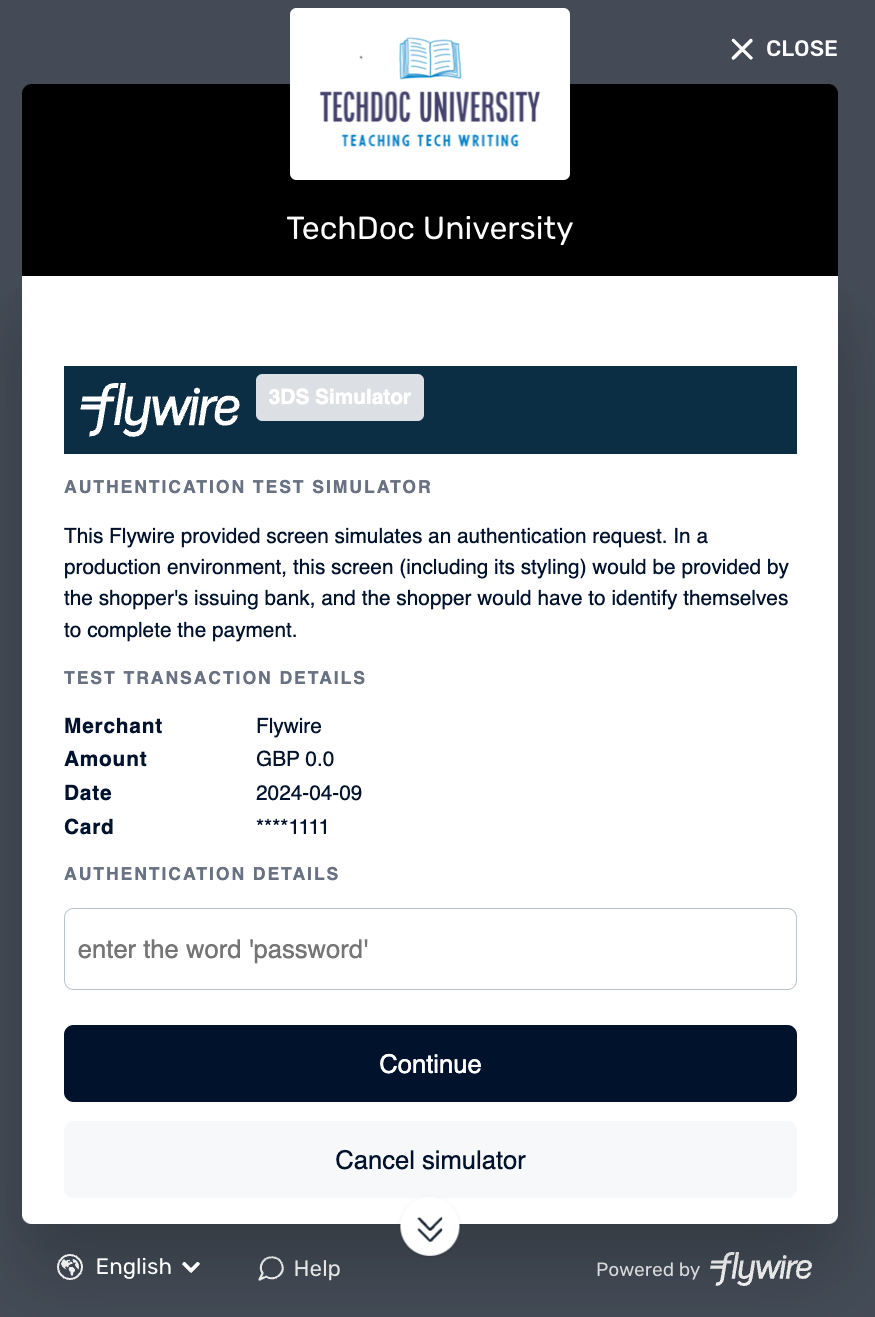
If you used a scenario that triggers 3DS authentication, you now see the Flywire 3DS authentication simulator. Enter the word password in the password field and click on continue to complete the authentication. |
8. Check the notifications.
The payment is now created according to your scenario. You'll receive the following notifications:
- For "Success" Scenarios
- For "Failed" Scenarios
Within the next 30 seconds:
 Initiated
Processed
Guaranteed
This is the end of this scenario.
Within the next 1 minute:
Initiated
Failed (immediately after initiated)
This is the end of this scenario.